How to update domain customer details
You may be reading this because you received an email asking you to update your domain’s customer details, or you want to change them yourself. This guide covers .co.zw, .org.zw and .ac.zw domains.
Step 1: Open the domain
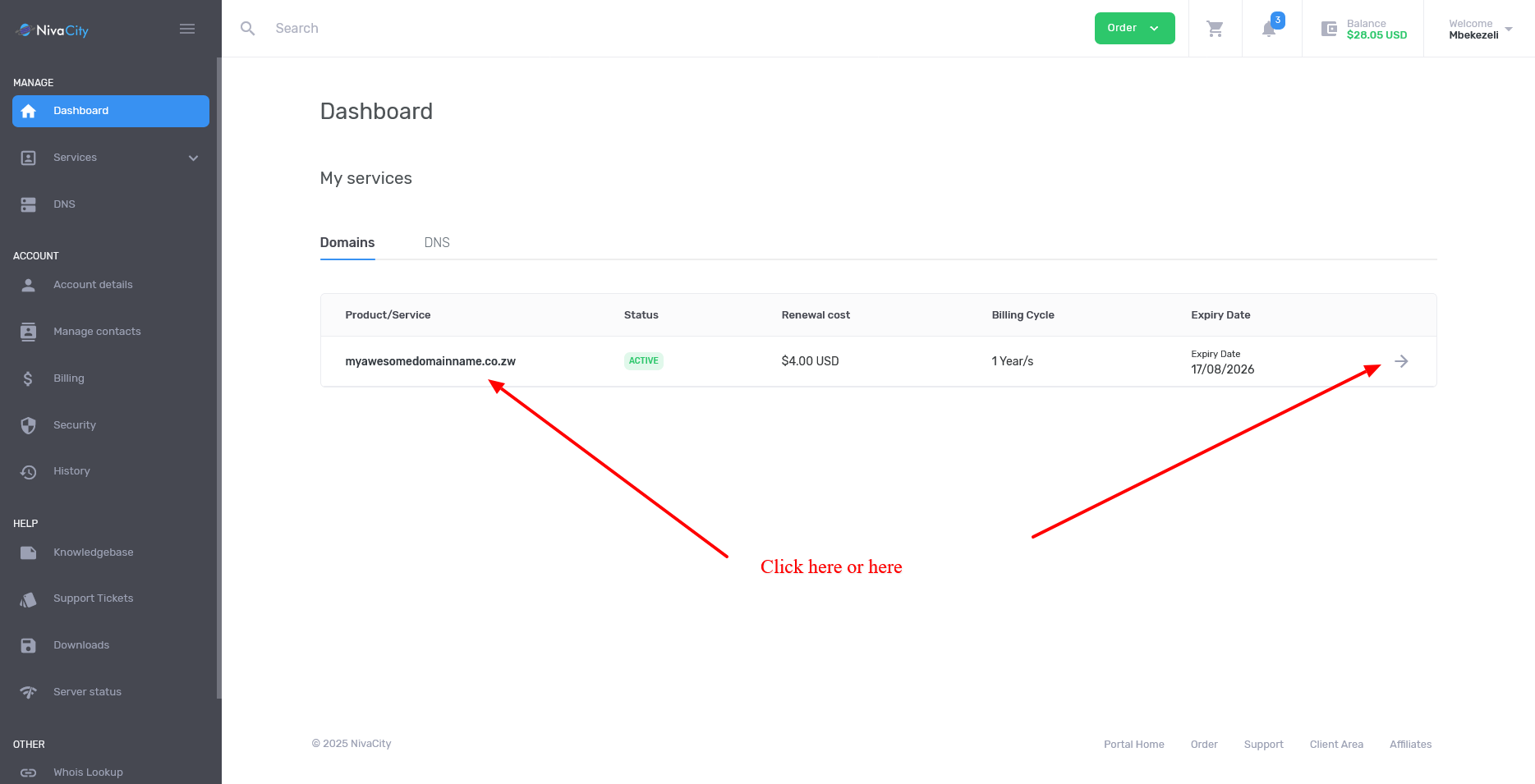
Section titled “Step 1: Open the domain”Log in to your Clientzone. Select the domain from your dashboard, or go to Services, then Domains, and select the domain you want to update.
Step 2: Choose Contact Information
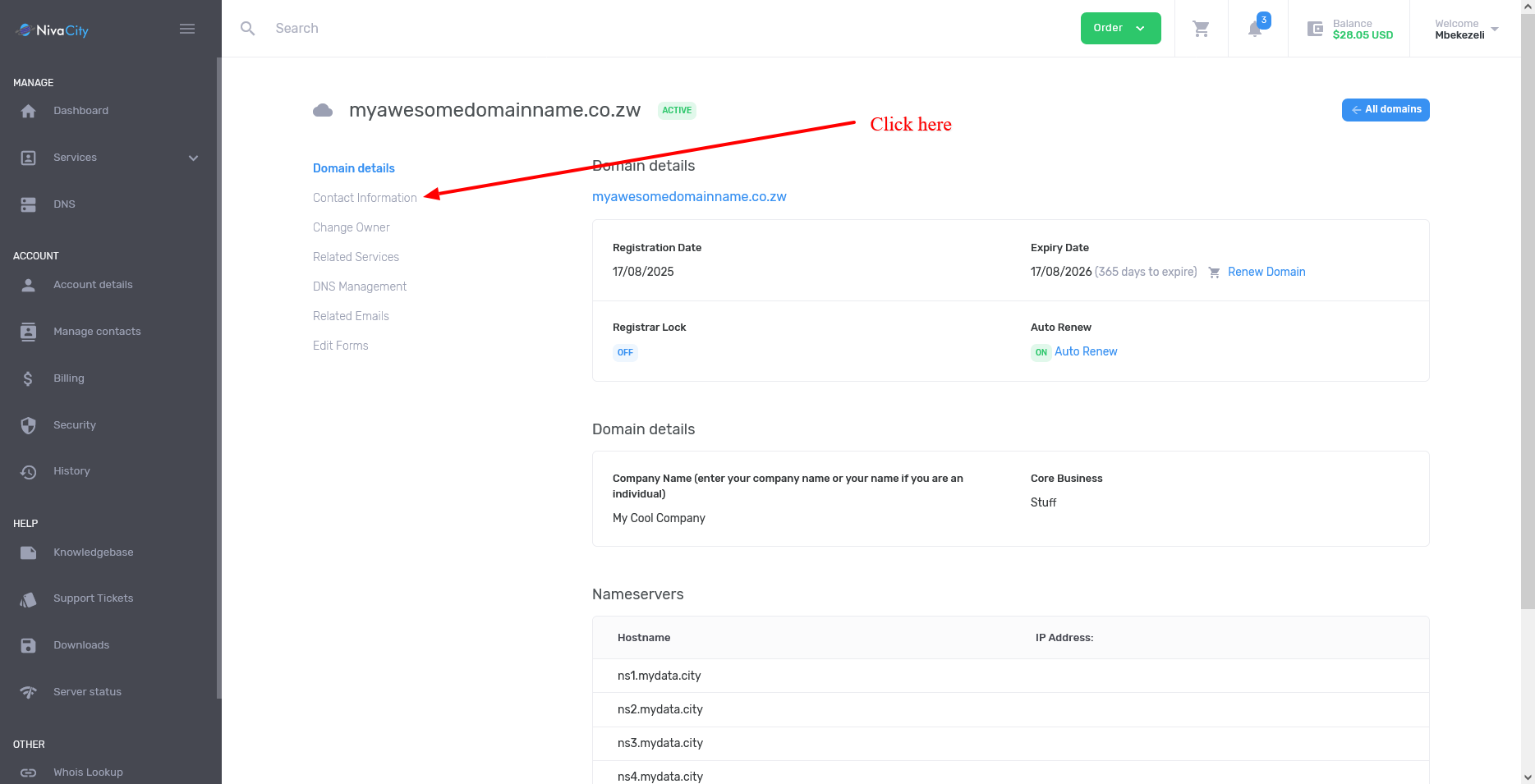
Section titled “Step 2: Choose Contact Information”Select Contact Information. Do not use Change Owner: that moves the domain from your account to someone else’s account. Here you are only updating the owner’s contact details.
Step 3: Enter the owner’s details
Section titled “Step 3: Enter the owner’s details”Fill in the domain owner’s details. All fields are required.
- Full name of the domain owner, or the business name if the domain belongs to a business
- Company name. If the domain is personal, enter the owner’s name here.
- A full physical address: street number, street name and suburb, for example 123 First Street, Avenues. If there is no street name, use the house or stand number and suburb, for example 2356 Mufakose. In a building with several tenants, include the unit number, building name, street and suburb. Do not add the city to this line, as it has its own field.
- A working email address. If the email address does not exist, the update will not go through.
- P.O. Box addresses are not accepted in any field.
For a full guide to every field, see What you need to register a .zw domain.
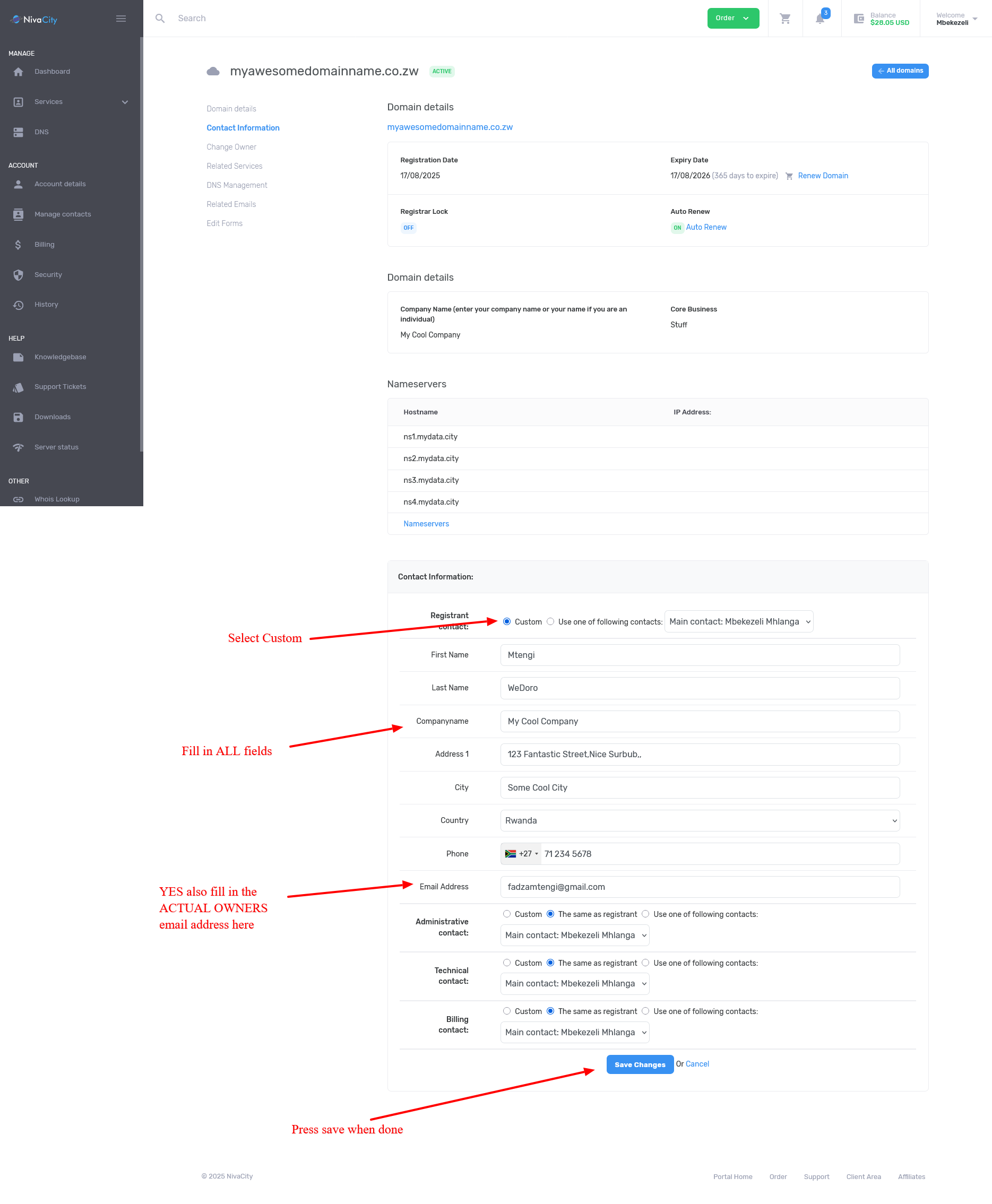
Click Save when you are done.
What happens next
Section titled “What happens next”Updates are checked manually, so allow 2 to 24 hours. You will then receive either an email from ZISPA confirming the registration or update, or an email from us asking for more details.